Day 1: How the Web Actually Works
What exactly happens when you type a website address into your browser? Have you ever wondered?
A web browser is a program used to access websites on the internet.
Let’s say you type https://example.com into Chrome or Firefox. We know that in a few seconds, a page full of words and colors will show up. We also know that this page wasn’t stored on your computer before you typed that address. So, how did it get there? What kind of mechanism was happening on the internet in those few seconds that led to this result?
Even if you haven’t wondered about this in the past, as long as you keep reading, you’ll understand the answer to that enigma.
I’m aware that many of you may have arrived here expecting to jump straight into writing code so you can “look cool.” But trust me: understanding this layer will actually help you. This isn’t the kind of pure theoretical knowledge where you’re just told that mitochondria is the powerhouse of the cell. Knowing how a page gets to you from across the internet will enable a junior developer like yourself to figure out 90% of the problems you’ll face on your network. It’s genuinely useful, even if you’re not planning to pursue a career in tech.
🎯 What You’ll Learn Today
By the end of this post, you will be able to:
- Understand the roles of DNS, HTTP, browsers, and servers
- Visualize the request → response lifecycle
- Trace a live network request using your browser’s DevTools
- Recognize common HTTP status codes and what they mean for debugging
1. The Client & The Server
At this stage, there are two words you need to understand well: the client and the server.
In the real world, a client is someone who receives a service or product. Similarly, in the context of browsing the internet, a client is a computer or program that requests and receives data. Usually, that’s your web browser (Chrome, Firefox, Safari, etc.).
By contrast, a server provides that service or product. Think of it like a salesperson at a footwear shop or a mechanic at a repair workshop. On the internet, a server is a computer (or program on a computer) that waits for requests, finds the requested data, and delivers it to the right target.
Of course, a shoe salesperson can’t sell you prescription medicine. Similarly, it’s important to send the right request to the right kind of server. For this reason, every server connected to the internet is given a unique address called an IP address (Internet Protocol address). When a website is created, an IP is assigned to it. No one else on the public internet shares that exact address.
However, you’ve probably realized by now that you don’t know the IP address of your favorite websites, nor do you know anyone who has memorized them. That’s because instead of a string of numbers like 151.101.1.67, we find it much easier to remember a domain like https://www.bbc.com. Computers, however, don’t speak human languages. They work best with numbers.
So how do computers find the right website when you type its domain?
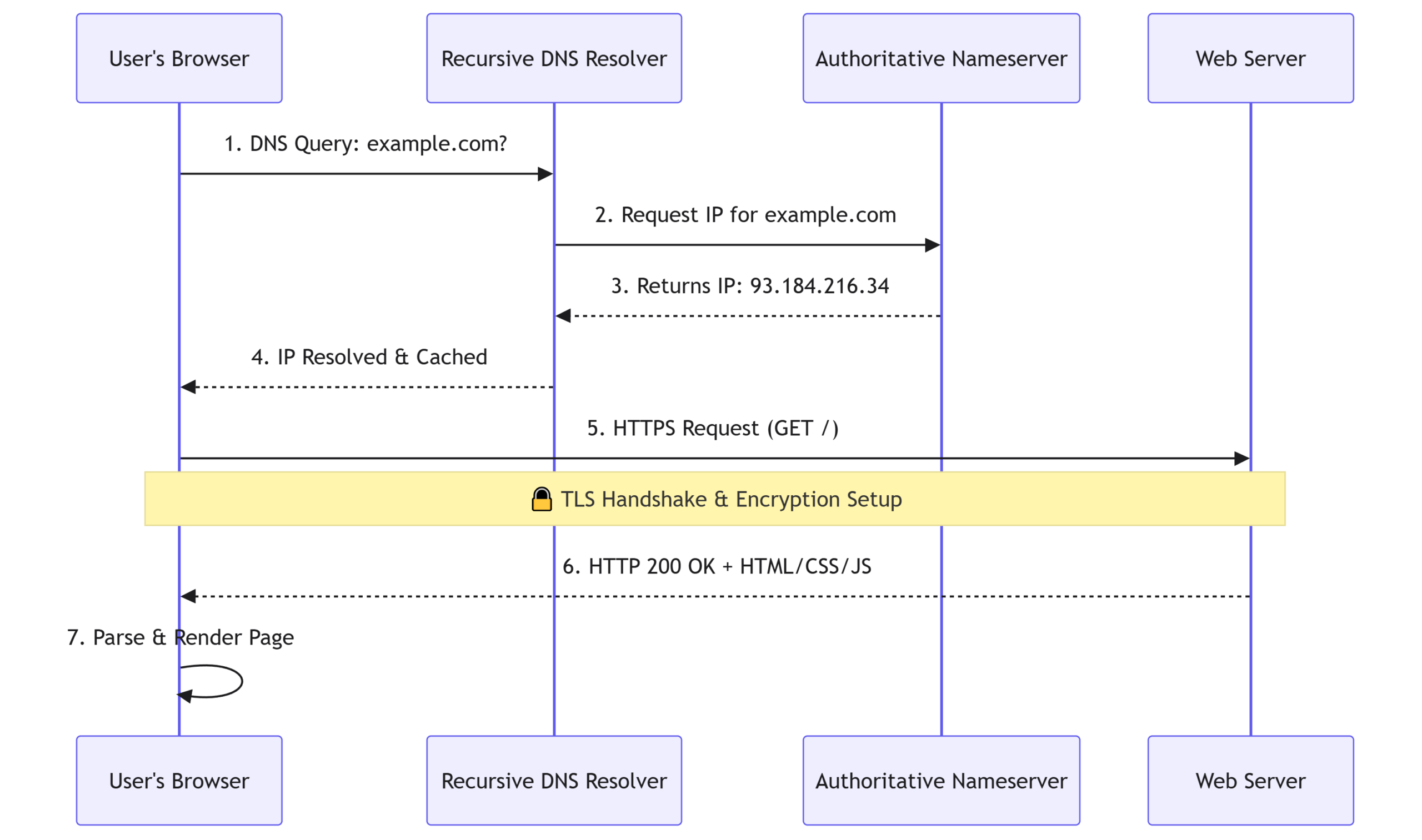
2. DNS: The Internet’s Phonebook
They work in a step-by-step process:
- Browser DNS Cache: Upon typing the URL, your browser first checks its own recent memory.
- OS Cache: If it’s not found there, your computer’s operating system cache is checked next.
- Recursive Resolver: If still missing, a request is sent to your ISP’s recursive DNS resolver. This resolver checks the top-level domain (TLD) like
.comor.net. - TLD Server: Each TLD has dedicated servers that know where to send the request next. The TLD server points the resolver to the authoritative nameserver for that specific domain.
- Authoritative Nameserver: If the website is active, this server knows exactly which IP address belongs to that domain. It returns the IP back to the resolver.
- Response: The IP is cached and sent all the way back to your browser.
Now the browser has the IP address it needs to connect to the server and fetch the website.
3. HTTP: The Conversation
To some of you, that process might have looked like a game of telephone. There’s truth to that: the interaction between client and server is a conversation. But for this conversation to work, certain “etiquette” must be followed. This is HTTP (Hypertext Transfer Protocol).
Every HTTP exchange has two parts: the request (from the client) and the response (from the server). Both are made up of clear components.
The Request Includes:
- Method: The action you want to perform (e.g.,
GET,POST). - URL/Path: The destination. Where your request is going on the server’s filesystem (e.g.,
/profile/settings). - Headers: Metadata about the request (e.g., “I’m using Chrome,” “I accept JSON”).
- Body: The actual data being sent (used in
POST/PUTfor passwords, forms, or uploads).
The Response Includes:
- Status Code: A three-digit number telling you if it worked (e.g.,
200 OK). - Headers: Metadata about the response (e.g., “This content is an image,” “Cache this for 1 hour”).
- Body: The payload (the HTML of the page, an image, or raw data).
HTTP Methods in Practice
Request methods are used for distinct operations on the server. Here’s how they map to everyday actions:
- GET: Asks the server to send existing data. When you refresh your Facebook feed, you’re using
GETto ask for recent posts and comments. - POST: Adds new data to the server. When you create a new post or leave a comment, you’re using
POSTto send that information to a faraway computer. - PUT: Updates existing data. If you edit a Facebook post you made yesterday, you’re using
PUTto overwrite the old version. - DELETE: Removes data permanently. Self-explanatory. (Some of you probably need to delete your Facebook account, but I’ll leave it at that.)
Status Codes: What the Server is Telling You
Status codes accompany every server response. Their purpose is to quickly indicate what became of your request. They’re grouped by their first digit:
- 2xx (Success): Everything went well.
200 OKmeans the page was found and delivered. Yes, even success gets a code. - 3xx (Redirection): The resource moved.
301 Moved Permanentlytells your browser to look at a new URL instead. - 4xx (Client Error): Something was done wrong on your end.
404 Not Foundmeans the URL is wrong.401 Unauthorizedmeans you need to log in. - 5xx (Server Error): Something broke on the server’s end.
500 Internal Server Errormeans the server itself has a problem, not your connection.
4. HTTPS & The TLS Handshake
Back when I was growing up, websites used plain HTTP. Today, almost everyone uses HTTPS. If you skip the “S”, modern browsers will warn users—or block your site entirely. We’re told it’s “more secure,” but what does that actually mean?
I could say that HTTPS wraps the client-server conversation in an encryption layer called TLS (Transport Layer Security), but that’s sleep-inducing jargon to most people. Let’s break it down plainly.
In the past, anyone on the same Wi-Fi network could easily read what you were sending. It traveled in plain text. Encryption turns your data into gibberish before it leaves your computer, and only turns it back into readable text when it arrives at the server. But how does the server know how to decode it?
Before any real conversation happens, the client and server perform a trust-building exercise called the TLS handshake. Let’s frame it like this: the server is “Martinez,” the client is “Lil Tyrone,” and they want to exchange a packet without “Unc. Raj” (a network snooper) seeing it. On a fine Saturday morning, they do a handshake:
- Hello: Lil Tyrone (client) says hello to Martinez (server). Martinez responds with a list of supported encryption types they can use.
- Certificate: Martinez shows his “membership badge” (a digital certificate) to prove he’s legit. This verifies the server’s identity.
- Key Exchange: They agree on a “secret code” (session key) that only they will know for this conversation.
- Encryption: All future messages are scrambled using that key. Unc. Raj can see the traffic, but it’s just unreadable noise to him.
Why this is the modern baseline:
- Privacy: No one can eavesdrop on your data in transit.
- Integrity: Prevents hackers from injecting ads or malware into pages while they travel to you.
- Trust: Browsers flag plain HTTP as “Not Secure,” which kills user confidence instantly.
Live Walkthrough: Seeing It Happen in Real Time
Theory’s fine, but watching the actual conversation unfold in your own browser? That’s where it clicks. You don’t need to install anything or write code. Your browser already logs every request.
- Open DevTools: Right-click anywhere on a webpage and select Inspect, or press
F12(Cmd+Option+Ion Mac). Click the Network tab. - Set the Stage: Check Disable cache (so we see fresh requests) and Preserve log. Now refresh the page (
F5). Watch the list populate. - Interrogate a Request: Click the first item (usually the domain or
index.html). In the Headers tab, you’ll see theRequest URL,Method(likelyGET),Status Code, andResponse Headers. - The Timing Breakdown: Switch to the Timing tab. You’ll see blocks for
DNS Lookup,Initial Connection,SSL(the TLS handshake),Waiting (TTFB), andContent Download. ThatWaitingblock? That’s exactly how long the server took to think and start replying.
Why this matters for debugging: Next time a page feels slow or an image breaks, don’t guess. Open this tab. Is DNS taking 300ms? Your resolver might be struggling. Did you get a 404 on a .js file? You know it’s a broken path, not a server crash.
Bonus: Watch HTTP in Action (No Code Required)
You don’t need to write code to see HTTP conversations. There are websites built specifically to mirror your requests back to you. Let’s use httpbin.org.
Open https://httpbin.org/get. You’ll see a block of JSON text. This is the server literally showing you: “Here’s exactly what you just sent me.” Look at the headers section. You’ll see your User-Agent, Accept types, and Host.
Try these:
https://httpbin.org/user-agent→ Returns just your browser info.https://httpbin.org/status/404→ Deliberately sends a 404 error.https://httpbin.org/status/500→ Simulates a server crash.
These aren’t broken pages. They’re demonstrations. When you’re debugging your own code later and see a 500, you’ll remember this moment. You’ll know the server itself has a problem, not your internet.
Your Turn: Trace a Real Request
Open any website you visit regularly. Open the Network tab, refresh, and scan the list. Find three different types of resources:
- The main HTML document
- A stylesheet (
.css) or script (.js) file - An image or font
Note their status code, file size, and load time. You’re training your eyes to spot patterns, not memorizing metrics.
Stretch prompt (optional): Ask yourself: What would happen to this page if DNS lookup failed? What if the server returned 500 instead of 200? What if your browser blocked third-party scripts? Just thinking through them wires the mental model into your brain.
Key Takeaways
- DNS is the internet’s phonebook: Translates human names to machine IPs.
- HTTP is a stateless conversation: Browser asks, server answers with a status code, connection closes.
- HTTPS isn’t optional anymore: TLS encrypts the conversation. Modern browsers penalize sites without it.
- DevTools Network tab is your first-line debugger: When something breaks, open this tab. The answer is usually right there.
If you remember nothing else, remember this: the web is just requests and responses. Everything else is optimization, abstraction, or scale.
What’s Next
Tomorrow (Day 2), we shift from how content travels to how content is structured. We’ll dive into HTML semantics: why <article> isn’t just <div>, when to use <nav> vs <section>, and how proper structure helps accessibility, SEO, and your future self.
Preview question: If you were building a blog post page from scratch, what HTML elements would you reach for first? Jot down three. We’ll compare notes tomorrow.





Leave a Reply